
Over the past year, we’ve shipped a lot — new features across transcription, research, writing, and publishing that have fundamentally expanded what Symbolic can do. As the product has grown, so has the complexity of navigating it. It was time to take stock of the full experience and make sure Symbolic is as easy to use as it is powerful.
This release is the first in a series of focused updates aimed at improving usability and stability across the platform. No new features this time — just a cleaner, more consistent, and more reliable Symbolic.
Here’s what’s changed:
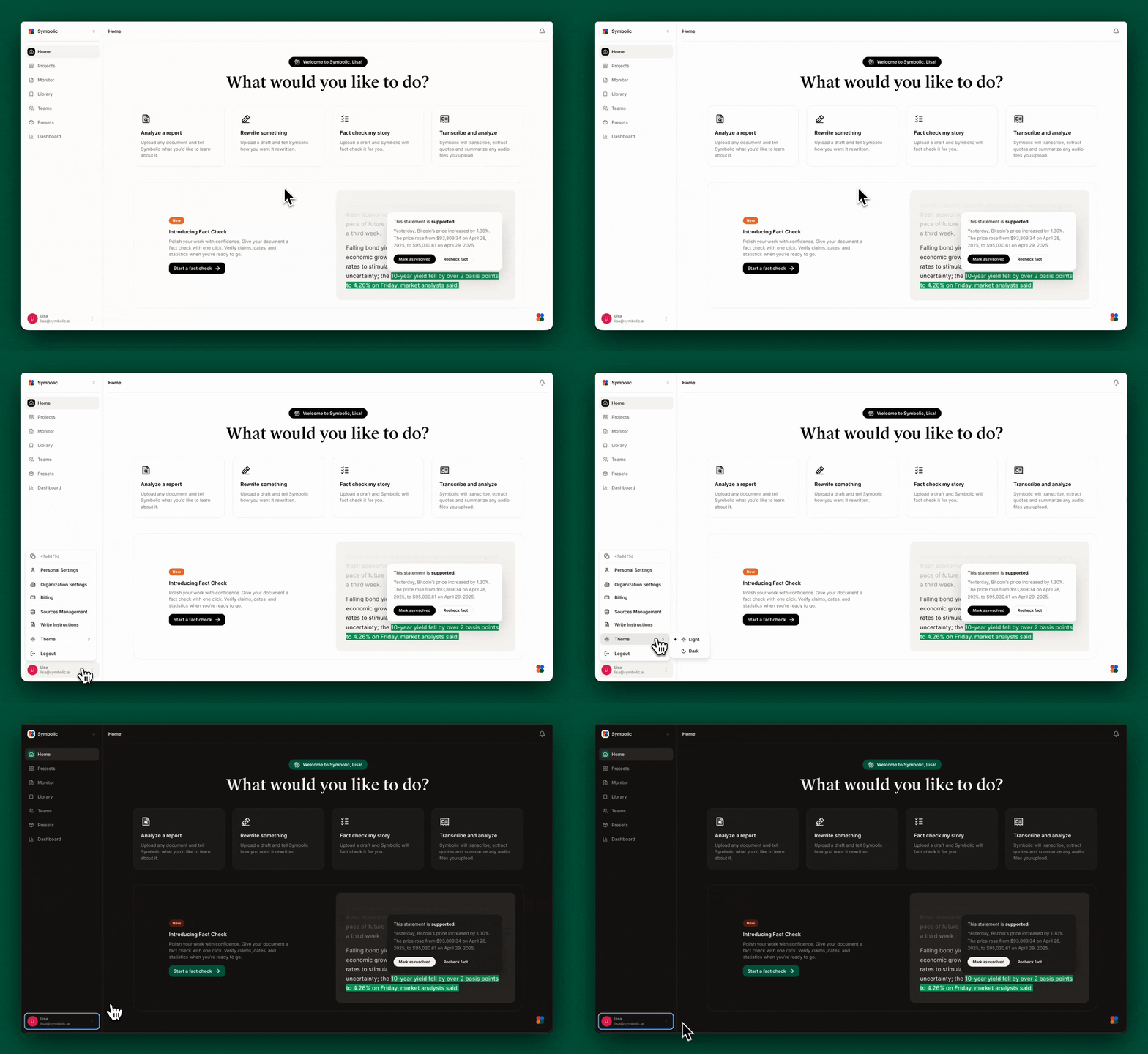
Dark Mode.
Symbolic now has a dark theme. Click on your account icon in the lower left of the home screen, go to themes, and you can toggle between light and dark modes. We’ll soon be adding a new option here “System,” that will automatically switch between light and dark mode based on your machine’s default settings.
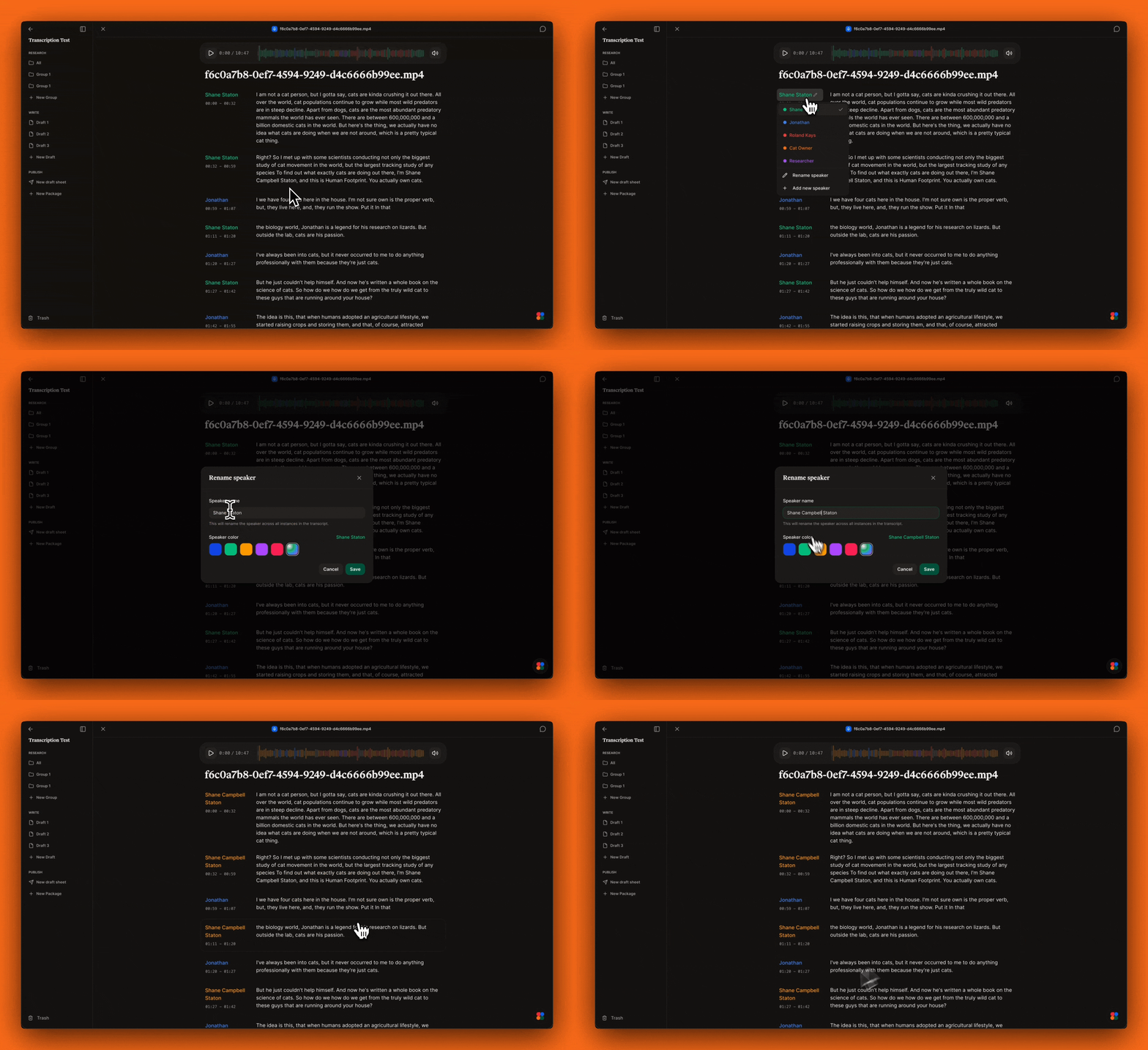
Transcription: Fewer clicks, smoother navigation
Easier speaker assignment. When you click on a speaker name next to a block of transcribed text, you can now easily rename the speaker in-line or re-assign that block to another speaker as well as choose which color represents them. When re-assigning a block of text to a different speaker you can choose to re-assign just that single block, or all blocks of text from the original speaker.
Smoother waveform navigation, auto-scroll, scrubbing & click to play. When you click play, audio and transcription stay in sync. Hover anywhere on the waveform to get a quick preview of the transcript at that moment in time and click to scroll directly to that part of the transcript.
Consistent time formatting. Timestamps throughout the transcription interface now use a consistent format, making it easier to reference specific moments.
These changes make the transcription interface more polished and responsive, reducing visual glitches and making identifying speakers and navigating audio more intuitive.
Editor Updates: Simpler, More Consistent Controls
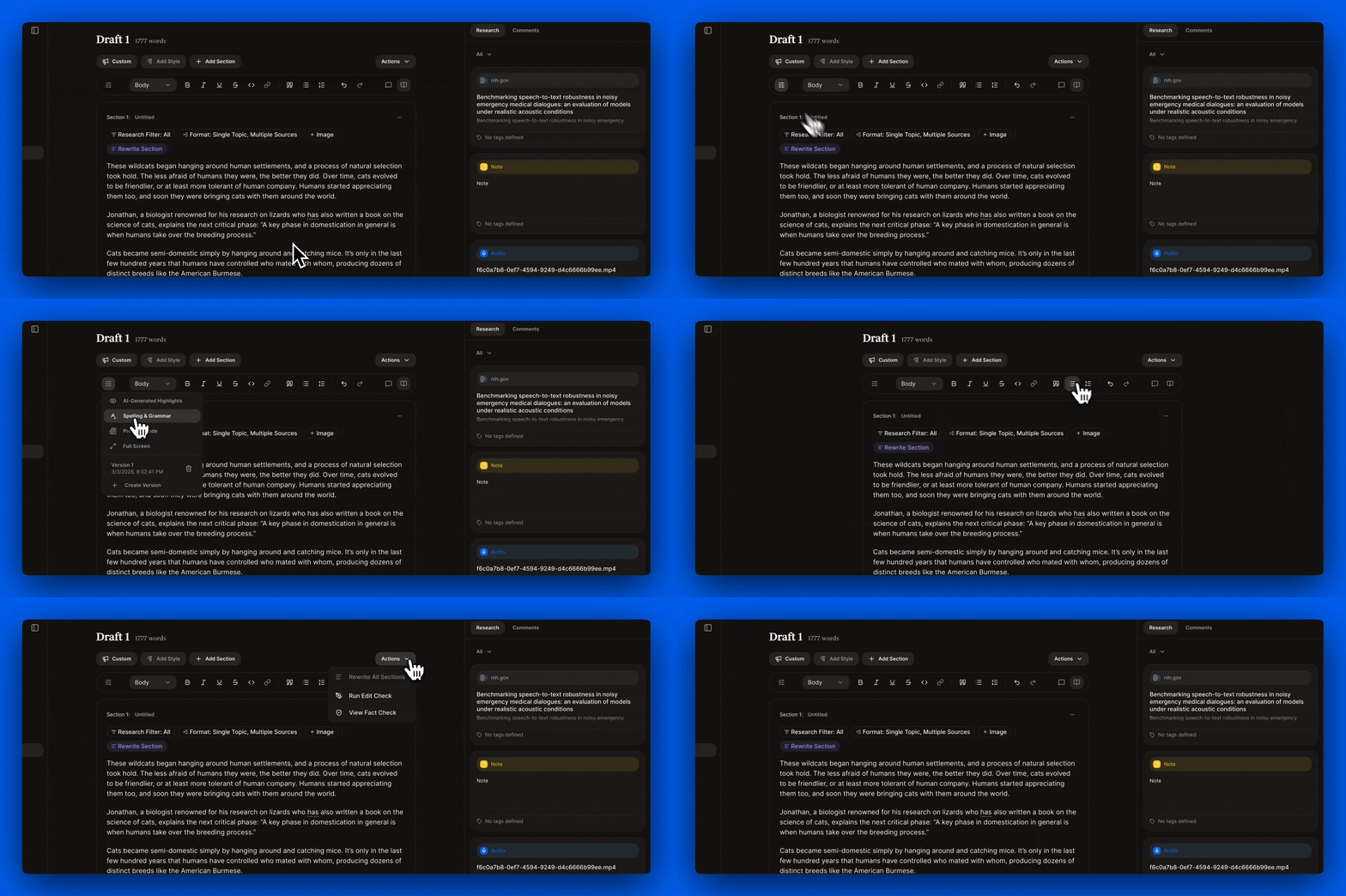
Fixed header. The draft name, voice and style settings and draft actions will now remain fixed at the top of the page, so you can still see and interact with these settings even if you’re scrolled to the bottom of the page.
Write toolbar. We’ve moved all formatting tools and draft view settings to a floating toolbar at the top of the Write page. To the left of the formatting tools, the “settings” icon opens up options that allow you to enable features like spell check, highlight ai-generated text and preview mode as well as create and view versions of your draft. To the right are two icons that allow you to open or close a sidebar where you can see all your comments or all your research.
Draft actions are consolidated. Write Rewrite, Fact Check and Edit Check are now grouped in a single “Actions” dropdown on the top right of the page. Any new Write features we release will live in this menu.
These changes make the editor more intuitive, letting you focus on your content instead of searching for controls.
Coming soon: A Research grid refresh and other UX improvements
That’s not all. In the coming weeks you can expect improvements to the user experience in the Research grid — namely, search, filter and bulk actions. You’ll be able to select multiple assets on the Research grid and tag them in one shot.
Product updates, written with Symbolic
This newsletter was written in Symbolic. In this case, we pulled code commits from GitHub into Symbolic, tagged them and Symbolic did the rest. If you’re using Symbolic to write product updates, let us know! We’d love to hear about your experiences.
That’s it from us this week. We are always working to improve Symbolic and make your experience more efficient and enjoyable. We would love to hear your feedback and any suggestions you may have for future updates. Don’t hesitate to reach out to team@symbolic.ai.